Friday, June 5, 2026
What Is a Proctored Assessment? How Online Proctoring Works

A proctored assessment is a test that is supervised while the candidate takes it, so the employer can have confidence that the results reflect the candidate's own work. In online proctoring, that supervision happens through the browser: webcam, screen and activity signals are recorded during the session and summarised for a human reviewer. Proctoring does not make cheating impossible; it deters it and gives reviewers evidence to make fair decisions.
This article explains how online proctoring works, which signals are typically monitored, how to handle privacy and transparency, how reviewers should interpret flags, and what candidates can do to prepare.
What is a proctored assessment used for?
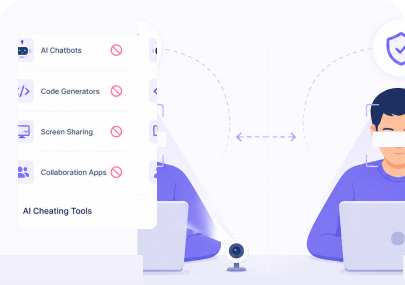
Skills assessments are only useful if the scores are trustworthy. When candidates complete tests remotely and on their own schedule, employers lose the ability to see who is taking the test and what resources they are using. That gap has grown as AI assistants make it easy to paste a question into a chat window and get an answer back in seconds.
Proctoring restores some of that visibility. It is not a replacement for good assessment design, and the strongest approach combines both: practical, role-specific questions that are hard to outsource, plus proctoring that deters shortcuts and records what happened. Our article on designing assessments that stay ahead of AI cheating covers the design side.
How online proctoring works
A typical proctored session follows a predictable flow:
- Notice and consent. Before the test starts, the candidate is told what will be monitored and grants browser permissions for the webcam, microphone and screen share.
- Setup checks. The system confirms the camera can see a face and that the correct screen is being shared.
- Monitored session. While the candidate answers questions, the platform records camera and screen activity and logs browser events.
- Automatic safeguards. Repeated violations, such as leaving fullscreen many times, can trigger warnings and, in some setups, automatic submission.
- Summary and review. After submission, the signals are summarised into flags and an overall integrity score. A human reviewer looks at the evidence alongside the candidate's answers.
What signals online proctoring monitors
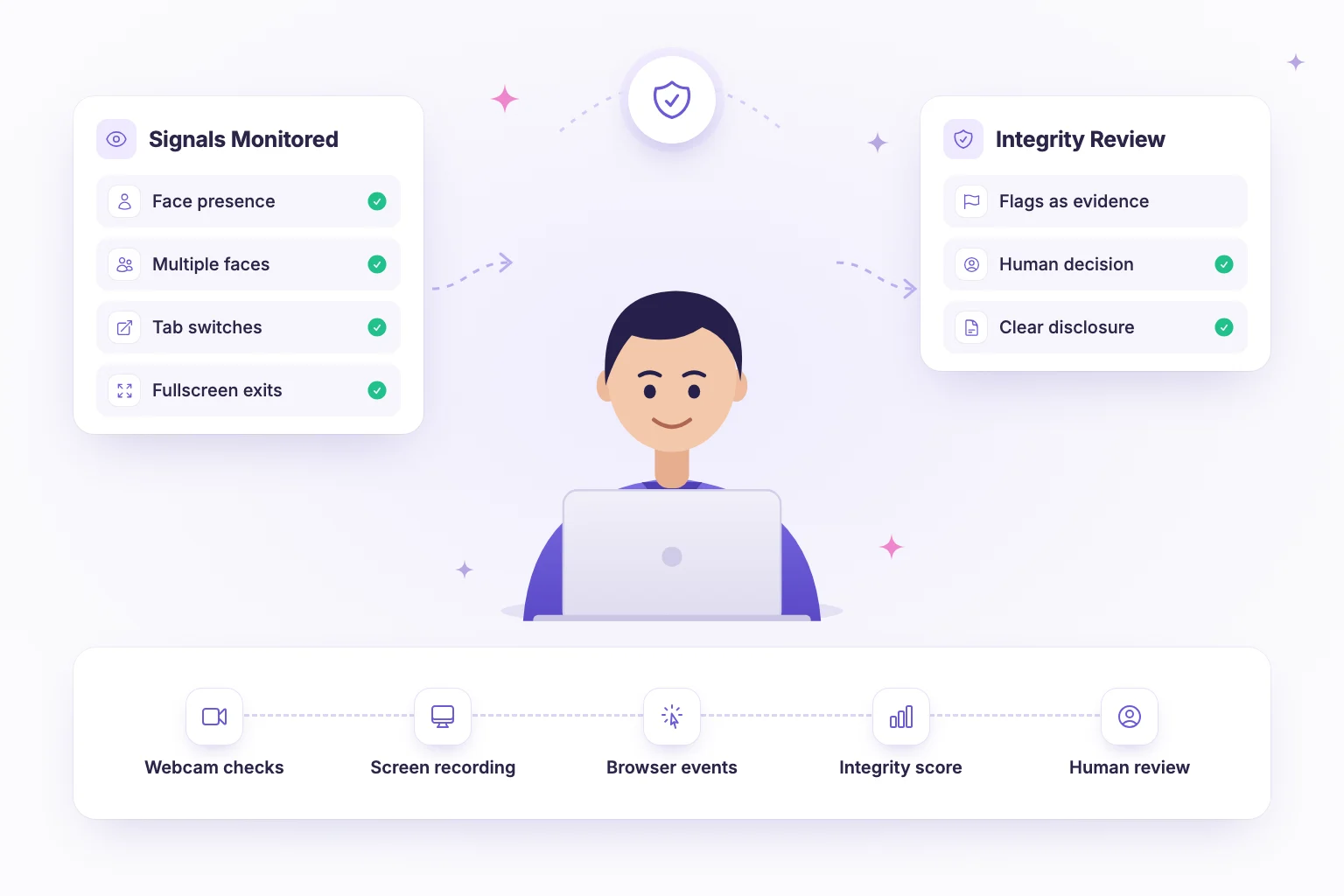
Signals differ between platforms. These are the categories most commonly used in hiring assessments:
Camera signals
- Face presence: whether a face is visible in the webcam frame.
- Multiple faces: whether more than one person appears in view.
- Face position and head pose: whether the candidate is centred and facing the screen, or repeatedly looking away.
Browser and screen signals
- Tab switches and window focus loss: the candidate moved away from the assessment tab or window.
- Fullscreen exits: the candidate left fullscreen mode when it was required.
- Copy and paste events: text was pasted into or copied from the assessment.
- Screen recording and screen-share checks: a recording of the shared screen, with checks that the right screen is being shared.
- Multiple monitors: whether more than one display is connected.
Second-camera signals
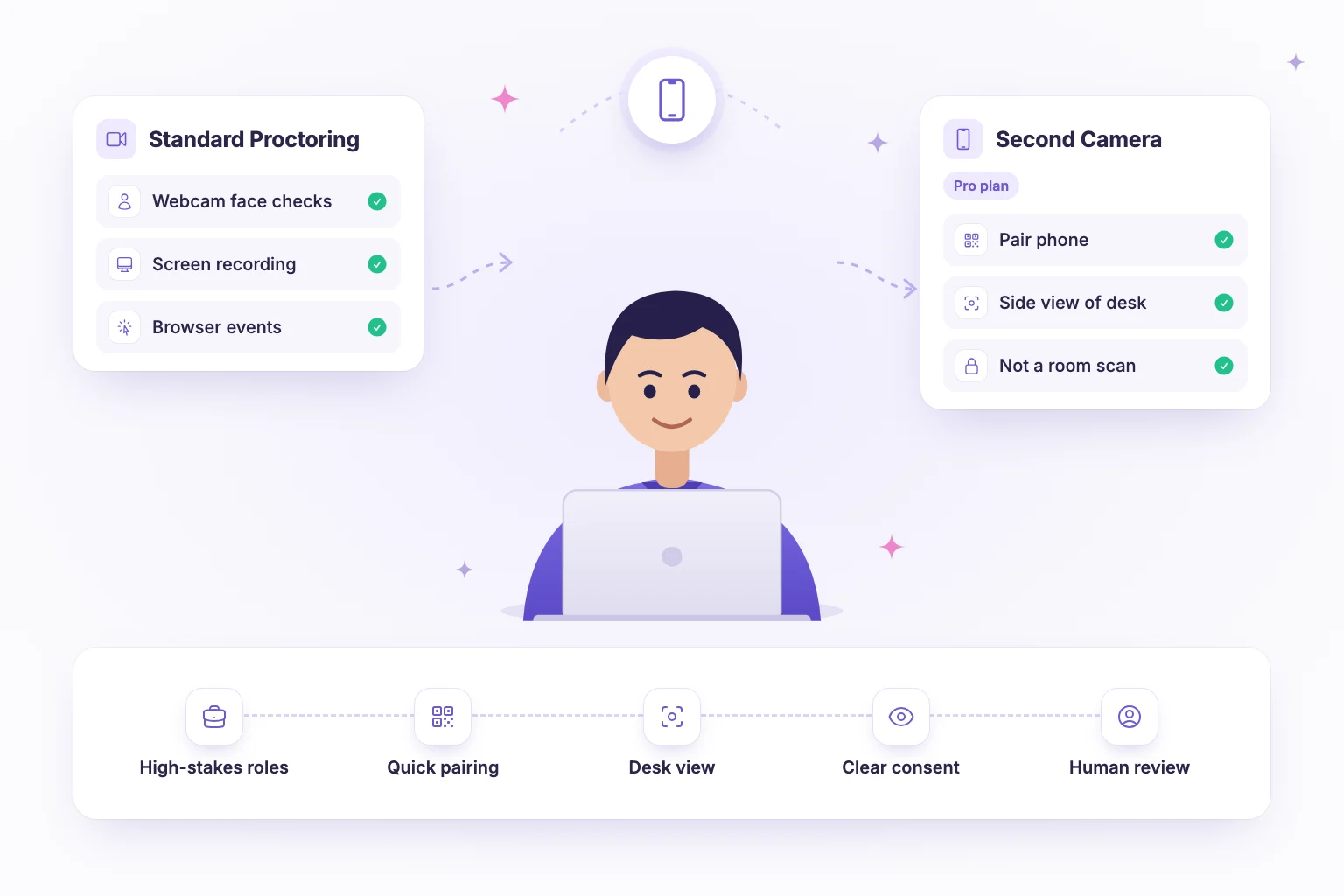
Some advanced setups pair the candidate's phone as a second camera, positioned to show a side view of the desk. This gives reviewers a view of hands and the immediate workspace that a front-facing webcam cannot capture. Read more about second-camera proctoring.
Remote proctoring models compared
Not every proctored exam works the same way. There are three broad models, and each suits a different situation:
- Live proctoring: a person watches the candidate in real time over video. It offers immediate intervention but requires scheduling a proctor for every session, which is hard to scale and removes the flexibility of asynchronous testing.
- Recorded proctoring with human review: the session is recorded and a reviewer looks at it afterwards. Candidates can take the test at any time, and reviewers only need to examine sessions or moments that raise questions.
- Automated signals plus human review: the platform detects events such as tab switches or a missing face, summarises them into flags and a score, and points the reviewer to the relevant moments. This is the most common model in hiring because it scales to large candidate pools while keeping a person in charge of the decision.
Many teams now apply proctoring to every assessment by default rather than only to high-stakes roles, so that all candidates are treated the same. We make the case for that approach in why always-on proctoring is the new standard for remote assessments.
Privacy and transparency in proctored exams
Proctoring involves recording people, so it should be handled with care. Good practice includes:
- Tell candidates first. Explain what is monitored, why, and who will see it, before the assessment starts, ideally in the invitation email as well as on the start screen.
- Limit scope. Monitor only during the assessment session, and only what you need to review integrity.
- Restrict access. Recordings should be visible only to people involved in the hiring decision, and stored in an access-controlled, isolated environment.
- Offer alternatives and accommodations. Candidates with disabilities or unusual setups should have a way to raise concerns before the session.
- Follow local law. Data protection rules vary by country; check what applies to you and your candidates.
Transparency also works in your favour. Candidates who know what is monitored are less likely to try shortcuts, and honest candidates are reassured that everyone is held to the same standard.
How reviewers should interpret proctoring flags
The single most important principle: flags are evidence, not verdicts. Every signal above has innocent explanations. A tab switch might be a system notification. Looking away might be someone who thinks with their eyes on the ceiling. A second face might be a child walking into the room.
| Signal | Possible innocent explanation | What to check |
|---|---|---|
| Single tab switch | Notification or accidental click | Duration and timing relative to hard questions |
| Frequent looking away | Thinking habit, notes allowed, second monitor position | Pattern across the session and whether answers change afterwards |
| Multiple faces | Someone passing through the room | How long the second person was present and whether they interacted |
| Large paste event | Candidate pasted their own code from a scratch file | What was pasted and whether it matches the rest of their work |
| Fullscreen exits | Accidental key press or browser prompt | Frequency and what was on screen during the exit |
A practical review process:
- Start with the integrity score and flag summary to decide how closely to look.
- Open the recording at the flagged timestamps rather than watching the whole session.
- Look for patterns, not single events. One flag rarely means much; a cluster around the hardest question means more.
- Compare the answer quality with the rest of the assessment and the candidate's interview.
- If you are still unsure, ask the candidate to explain their approach in the next interview.
- Record your reasoning so decisions are consistent across candidates.
Tips for candidates taking a proctored assessment
- Read the instructions. Know what is monitored and what resources, if any, are allowed.
- Prepare your space. A quiet room, a clear desk and good light on your face help the camera see you.
- Close other apps and tabs. Turn off notifications so they do not pull you out of the assessment window.
- Use one monitor unless the instructions say otherwise.
- Check your equipment and internet connection before you start.
- If something goes wrong, say so. Tell the recruiter about interruptions straight away.
NirnAI has a dedicated candidate preparation page that explains what to expect.
How NirnAI approaches proctored assessments
NirnAI includes standard proctoring on every plan, designed to deter shortcuts and give reviewers clear evidence:
- Camera signals: face presence and multiple-face detection, face position, and head-pose tracking for looking away.
- Browser signals: tab switches, window focus loss, fullscreen exits and copy/paste events.
- Screen evidence: screen recording with screen-share checks, plus multi-monitor detection.
- Safeguards: automatic submission after repeated violations.
- Integrity score and flags that summarise the session, while a human reviewer makes the decision.
- Advanced proctoring on the Pro plan: pair the candidate's phone as a second camera for a side view of the desk.
Each organisation's data lives in its own isolated schema, and role-based access controls who can view results. Want to see how it works in practice? Start a 14-day free trial and send yourself a proctored test.
Frequently asked questions
- Can a proctored assessment tell if I am cheating?
- A proctored assessment records signals such as tab switches, looking away from the screen or a second face in view. These signals are not a verdict on their own. They are evidence that a human reviewer examines in context before making any decision. Many flags have innocent explanations, which is why good hiring teams review recordings rather than rejecting candidates automatically.
- Is online proctoring an invasion of privacy?
- It depends on how it is run. Responsible proctoring is limited to the assessment session, tells candidates in advance exactly what is monitored, and restricts access to recordings to the people reviewing the application. Candidates should be able to read what is collected before they start. Employers should collect only what they need to review integrity and keep data isolated and access-controlled.
- What happens if my internet drops during a proctored test?
- A dropped connection may appear in the session record, but a single interruption is usually easy for a reviewer to recognise as a technical issue rather than misconduct. If it happens, reconnect as soon as you can and let the recruiter know what happened. Clear communication helps the reviewer interpret the session correctly.
- Do I need special equipment for a proctored assessment?
- Usually you need a computer with a working webcam and microphone, a modern browser and a stable internet connection. Some assessments ask you to share your screen or use fullscreen mode. Advanced setups may ask you to pair your phone as a second camera. Check the instructions from the employer before the session.