Thursday, September 24, 2026
Second Camera Proctoring: When and How to Use It Well

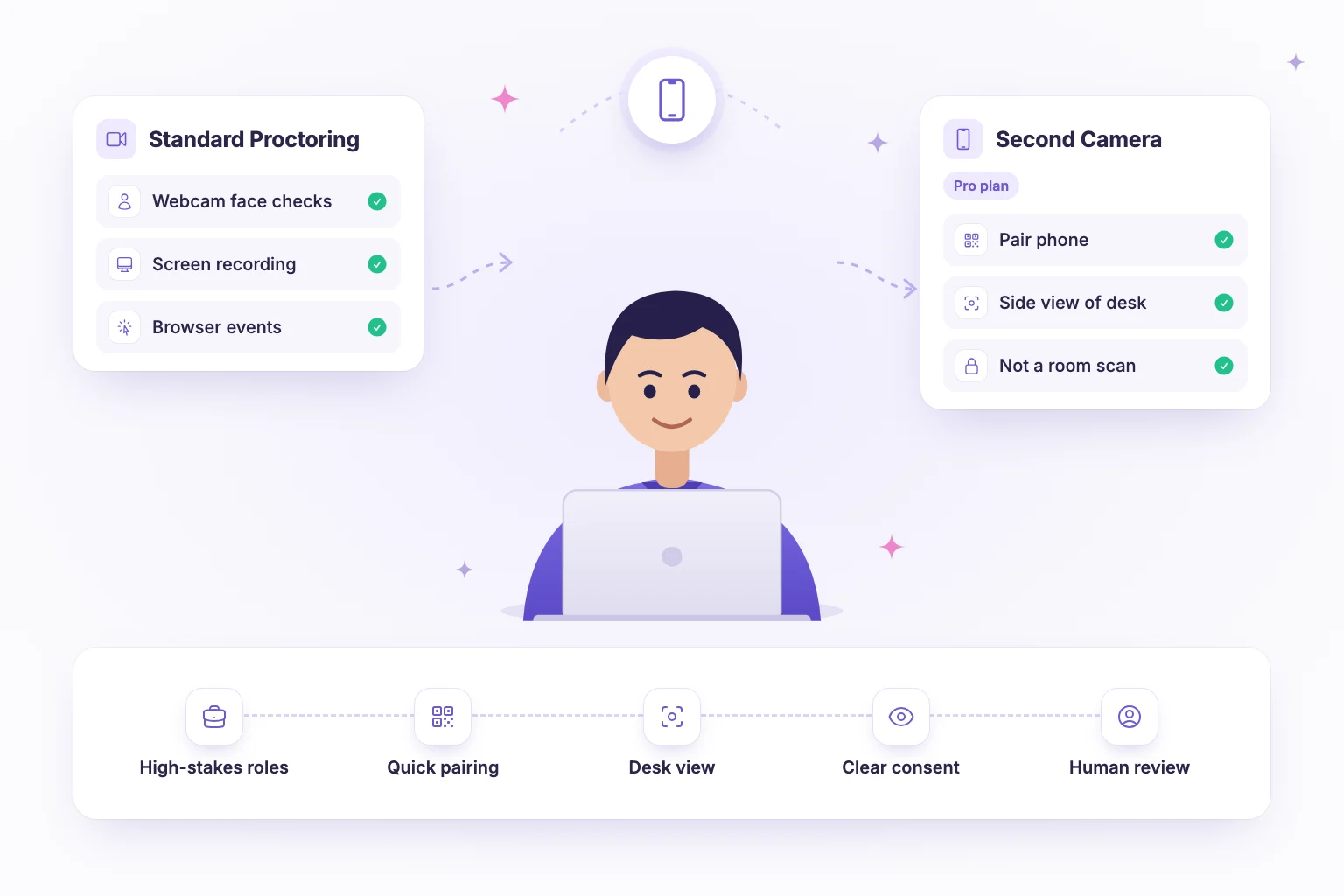
Second camera proctoring adds a second video feed to a remote assessment, usually from the candidate’s phone placed to the side of their desk. It captures the angle a front-facing webcam misses, including hands, keyboard and desk surface, giving reviewers more context when a flag appears. It is best reserved for high-stakes assessments where the extra setup step is justified.
Standard webcam and screen proctoring covers most hiring situations well. But for a senior hire, a final-stage technical assessment or a certification, teams often want more confidence that the result reflects the candidate’s own work. This guide explains what second camera proctoring is, when to use it, how it works, and how to keep the experience fair and respectful for candidates.
What is second camera proctoring?
In a typical remote assessment, the webcam faces the candidate from the front. That view shows the face and head position well, but it cannot see what is happening beside or below the screen. A second camera closes that gap.
With second camera proctoring, the candidate pairs their phone with the assessment and props it up to one side of the desk. The phone shows a side view of the candidate at work: their posture, hands, keyboard and the desk surface. It is a fixed view of the working area, not a scan of the whole room.
The second camera does not replace other signals. It adds to the webcam feed, screen recording and browser activity tracking already in place, so a reviewer looking at a flag has more than one angle to consider.
When high-stakes assessments justify a second camera
Every extra proctoring step asks something of candidates, so match the level of monitoring to the stakes. Second camera proctoring makes the most sense when:
- The role is senior or business-critical. Hiring an engineering lead, a security specialist or someone with access to sensitive systems carries a high cost if the assessment result is not genuine.
- It is a final-stage assessment. Candidates who have progressed this far are invested, and a more thorough check at the end is reasonable.
- The result is a certification or credential. If others will rely on the score, its integrity matters beyond one hiring decision.
- The assessment carries heavy weight in the decision. If a single test largely determines who advances, reducing blind spots is worth the effort.
It is usually unnecessary for early screening, short knowledge checks or high-volume roles where standard proctoring already provides a good deterrent. Adding it everywhere increases friction without adding much value.
Standard proctoring versus second camera proctoring
| Aspect | Standard webcam and screen proctoring | Second camera proctoring |
|---|---|---|
| Camera view | Front-facing webcam of the candidate | Front webcam plus a side view of the desk from a paired phone |
| Browser and screen signals | Tab switches, focus loss, fullscreen exits, copy/paste, screen recording | All of the same signals |
| Coverage | Face, head pose, on-screen activity | Adds hands, keyboard and desk surface |
| Candidate setup | Webcam and screen share | Also requires a phone and a stable place to position it |
| Best for | Most screening and mid-stage assessments | Senior roles, final stages, certifications |
How second camera proctoring works
The flow is designed to be quick for candidates:
- Candidate starts the assessment on their computer and is prompted to pair a second camera.
- They pair their phone with the assessment session.
- They position the phone to one side of the desk, angled so it shows them, their keyboard and the desk surface.
- The assessment runs as normal, with the webcam, screen and browser signals monitored as usual and the side view captured alongside.
- A reviewer checks flagged moments after submission, using both angles to decide whether anything needs follow-up.
The key principle is that the second camera provides evidence for a person to review. It does not make decisions on its own, and a flag is a prompt to look closer, not proof of wrongdoing.
Candidate experience and privacy
Second camera proctoring asks candidates to share more of their environment, so transparency and restraint matter.
- Tell candidates in advance. Mention it in the assessment invitation, not at the moment they start. Explain why it is used for this stage and what the phone will see.
- Be clear about scope. The side view covers the desk area. It is not a room scan, and candidates should know that.
- Explain how recordings are used. Say who reviews them and that humans make any decisions.
- Offer help and alternatives. Some candidates will not have a suitable phone or stable surface. Give them a way to raise this and a reasonable alternative arrangement.
- Use it only where it is needed. Applying the strictest monitoring to every stage signals distrust and can put off strong candidates.
Pointing candidates to a preparation page, such as NirnAI’s candidate prep guide, helps them arrive ready and reduces anxiety on the day. For more on the broader approach, read our article on what a proctored assessment is and how it works.
Setup tips for candidates and recruiters
For candidates
- Charge the phone fully or keep it plugged in, and silence notifications.
- Use a small stand, a stack of books or a phone holder so the phone stays steady.
- Place it to the side at roughly desk height, far enough back to show you, the keyboard and the desk.
- Check the frame before starting and clear anything you would rather not show.
- Make sure both devices are on a stable internet connection.
For recruiters
- Include setup instructions and a short explanation in the invitation email.
- Run through the flow yourself on a test assessment so you can answer candidate questions.
- Agree internally how flags will be reviewed and by whom before the assessment goes live.
- Combine the second camera with role-specific questions that are hard to outsource or answer with a quick search.
Reviewing second camera footage fairly
More footage only helps if it is reviewed consistently. Agree a simple process before the first high-stakes assessment goes out:
- Start from the flags. Review the moments the system flagged rather than watching every recording end to end.
- Check both angles together. A candidate looking away on the webcam may simply be glancing at the keyboard, which the side view will show.
- Look for patterns, not single moments. One brief glance is rarely meaningful; repeated, sustained behaviour alongside other signals deserves attention.
- Record the reasoning. Note what was observed and why a decision was made, so outcomes are consistent across reviewers.
- Give candidates a chance to explain. Where something is unclear, a short follow-up conversation is fairer than an automatic rejection.
How second camera proctoring complements standard proctoring
Think of integrity as layers. Well-designed, role-specific questions make cheating less useful. Standard proctoring deters common shortcuts and records browser and webcam signals. A second camera removes the biggest remaining blind spot for high-stakes tests. Human review ties it together, so a candidate is never judged by an automated flag alone. Our article on always-on proctoring for remote assessments covers the standard layer in more depth.
How NirnAI supports second camera proctoring
NirnAI offers two levels of proctoring. Standard proctoring is included on every plan and covers face presence and multiple-face detection, face position, head-pose and looking-away tracking, tab switches, window focus loss, fullscreen exits, copy/paste events, screen recording with screen-share checks and multi-monitor detection. Repeated violations can trigger automatic submission, and each attempt receives an integrity score and flags that a human reviewer decides on.
Advanced Proctoring, available on the Pro plan, adds second camera proctoring: candidates pair their phone as a second camera that shows a side view of the desk, not a room scan. You can reserve it for the assessments that justify it, such as senior roles or final stages, while keeping standard proctoring for everything else. See the details on the NirnAI proctoring page and compare plans on the pricing page.
Proctoring is a deterrent and evidence tool, not a guarantee, and NirnAI keeps people in charge of every integrity decision. Start a 14-day free trial of NirnAI to see how it fits your high-stakes hiring.
Frequently asked questions
- What is second camera proctoring?
- Second camera proctoring adds another camera, usually the candidate's phone, to a remote assessment. The phone is placed to one side of the desk so it captures a side view of the candidate, keyboard and desk surface. This covers what a front-facing webcam cannot see and gives reviewers more context when a proctoring flag needs to be assessed.
- Does second camera proctoring scan the whole room?
- Not in NirnAI. The paired phone shows a fixed side view of the desk area, not a sweep or scan of the room. Candidates should still check what is visible in the frame before starting, but the purpose is to see the working area during the assessment rather than to inspect their home.
- When should you use a second camera for proctoring?
- Use it when the stakes justify the extra step for candidates: senior or business-critical roles, final-stage assessments, certifications or any test where a result carries significant weight. For early screening or high-volume hiring, standard webcam and screen proctoring is usually enough and keeps the candidate experience lighter.
- Can second camera proctoring prevent all cheating?
- No proctoring method can guarantee that. A second camera reduces blind spots, acts as a deterrent and gives reviewers better evidence, but it should be combined with well-designed questions and human review of flags. Treat it as one layer of an integrity approach, and be transparent with candidates about how it works and why.